> ## Documentation Index
> Fetch the complete documentation index at: https://docs.lantern.is/llms.txt
> Use this file to discover all available pages before exploring further.
# Adding Extensions
> Learn how to add extensions to your Online Store theme
Once you've installed Lantern on your store, you can start using our extensions to customize your Online Store theme.
## Step 1: Enabling the Lantern App Embed
* From your Shopify Admin, go to **Online Store > Themes**.
* Click the **Customize** button next to the theme you want to edit.
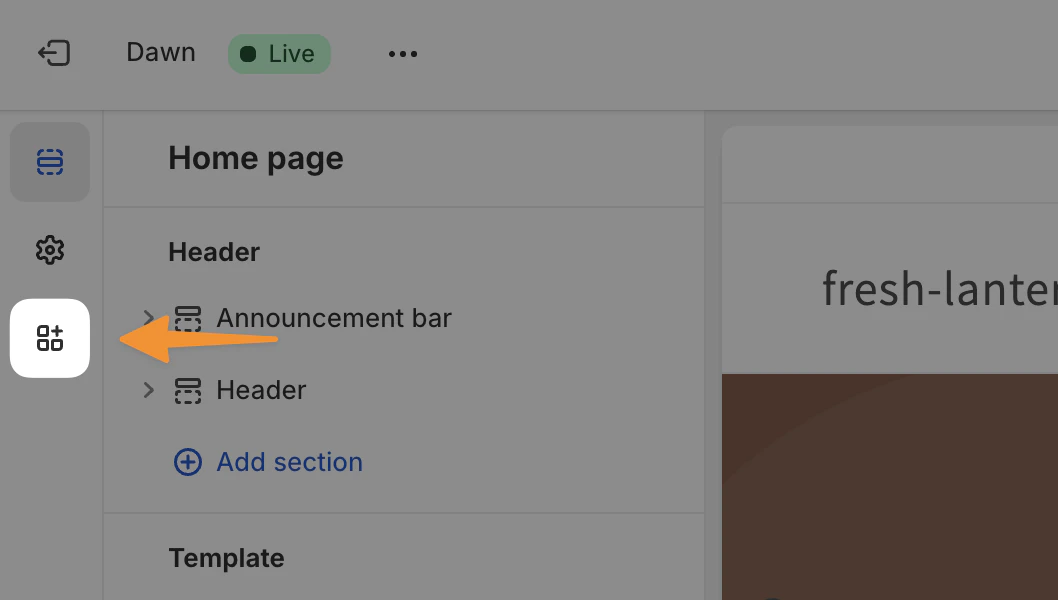
* On the left side of your screen, click the icon shown in the screenshot below to open the **App Embeds** interface.
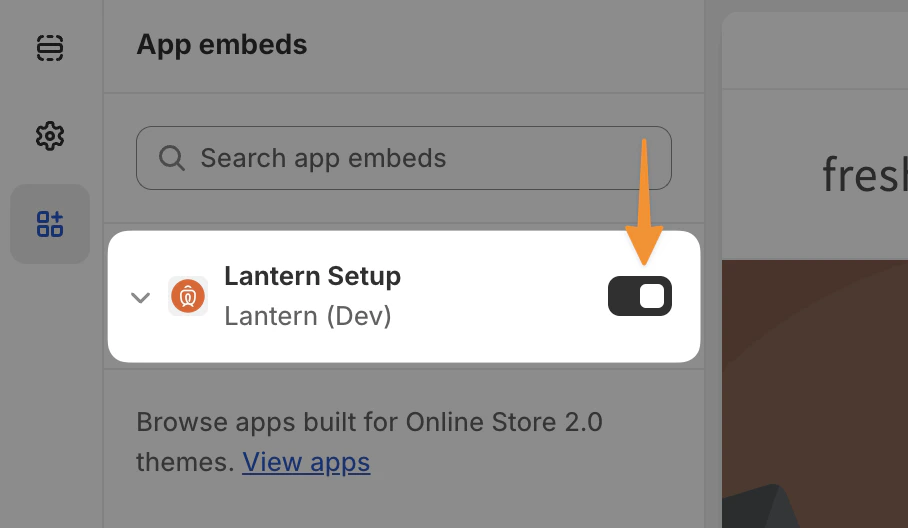
 * Toggle the **Lantern Setup** app embed on as shown in the screenshot below. If you don't see it in the list, try searching for **Lantern** in the **Search app embeds** search box.
 * Click **Save** in the top right to save your change. This won't impact your site experience
## Step 2: Adding your first extension
Now that your Lantern app embed is enabled, you can start adding extensions to your theme. In this example, we'll add some new features to the logged in **Customer Account** page. These steps will work for any template.
* Navigate to the page where you want to add your extension by using your site navigation or by clicking the dropdown in the top-center of your screen.
* In our case, we'll select **Legacy Customer Accounts > Account**.
If you haven't logged in yet, you may be redirected to your store's log in page. If you have an account, log in and you should be redirected to your store's account page. If you don't have an account, create one now.
* Once you're on the **Customer account** page as shown at the top of the left sidebar, you can start adding extensions.
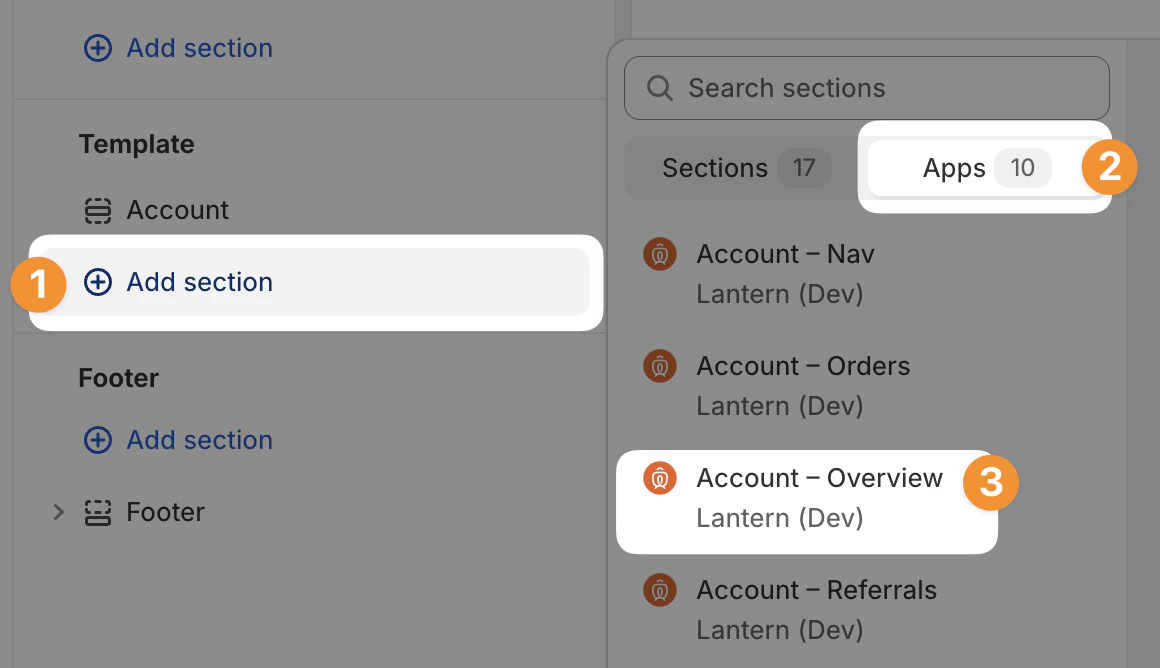
* Click the **Add section** option under **Template** and select the **Apps** toggle at the top of the popover.
* Choose the extension you'd like to add. In our case, we'll pick **Account — Overview**.
* Click **Save** in the top right to save your change. This won't impact your site experience
## Step 2: Adding your first extension
Now that your Lantern app embed is enabled, you can start adding extensions to your theme. In this example, we'll add some new features to the logged in **Customer Account** page. These steps will work for any template.
* Navigate to the page where you want to add your extension by using your site navigation or by clicking the dropdown in the top-center of your screen.
* In our case, we'll select **Legacy Customer Accounts > Account**.
If you haven't logged in yet, you may be redirected to your store's log in page. If you have an account, log in and you should be redirected to your store's account page. If you don't have an account, create one now.
* Once you're on the **Customer account** page as shown at the top of the left sidebar, you can start adding extensions.
* Click the **Add section** option under **Template** and select the **Apps** toggle at the top of the popover.
* Choose the extension you'd like to add. In our case, we'll pick **Account — Overview**.
 * Your **Account — Overview** extension should now show up on your page. You can click on it in your left sidebar to manage its settings and reorder it on your page like any other theme section. In this case, you may want to change which widgets appear depending on whether you're using a Loyalty Program or not.
* If you want to explore and add more blocks, keep adding them from the **Add block Add section** actions in the sidebar. You can intersperse Lantern extensions with your existing theme sections to build a fully customized page.
* Once you're done updating your theme, you can hit **Save** in the top right to save your changes.
## Step 3: Building out the rest of your extensions
Now that you know how to add and update Lantern extensions, you can follow the same approach to build a custom experience throughout your store.
* Your **Account — Overview** extension should now show up on your page. You can click on it in your left sidebar to manage its settings and reorder it on your page like any other theme section. In this case, you may want to change which widgets appear depending on whether you're using a Loyalty Program or not.
* If you want to explore and add more blocks, keep adding them from the **Add block Add section** actions in the sidebar. You can intersperse Lantern extensions with your existing theme sections to build a fully customized page.
* Once you're done updating your theme, you can hit **Save** in the top right to save your changes.
## Step 3: Building out the rest of your extensions
Now that you know how to add and update Lantern extensions, you can follow the same approach to build a custom experience throughout your store.