> ## Documentation Index
> Fetch the complete documentation index at: https://docs.lantern.is/llms.txt
> Use this file to discover all available pages before exploring further.
# Sign in with Shop
> Give your customers the ability to sign in or create an account instantly with Shop.
Works for stores using New Customer Accounts and Legacy Customer Accounts.
Give your customers the ability to sign in or create an account on your store instantly with their Shop account. This one-click sign in method is a great way to increase account sign in rates and simplify the account creation process.
Shop sign in is a passwordless sign in method. Customers will sign in with a one-time code sent to their phone number or email address. It works in alongside your existing sign in methods to create a seamless account creation and sign in experience.
### Adding the Sign in with Shop action to your Account Menu
Go to your **Dynamic Account Menu** extension in [Lantern's Flare
editor](https://admin.shopify.com/apps/customer-engagement/online-store/flare/dynamic-account-menu).
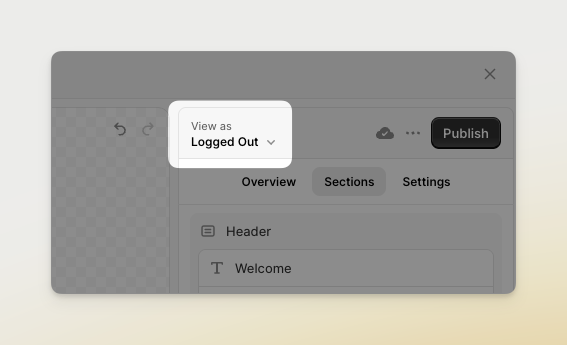
Switch to the **Logged Out** state in the top right of the editor near the **Publish** button.
 Press on the **Login actions** block to edit it. If you don't have a **Login actions** block,
you can add one by clicking the **Add block** button and choosing **Login actions** from the
list.
Click the **Add** action and choose the **Sign in with Shop** action.
Press on the **Login actions** block to edit it. If you don't have a **Login actions** block,
you can add one by clicking the **Add block** button and choosing **Login actions** from the
list.
Click the **Add** action and choose the **Sign in with Shop** action. 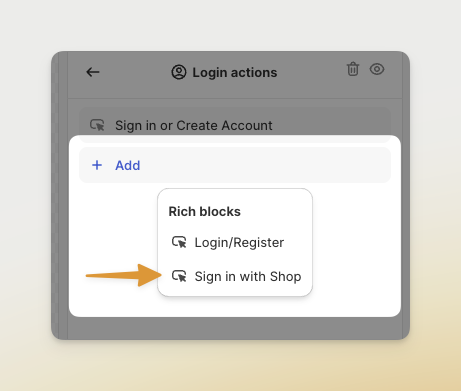 Update the settings to match your preferences. You can choose whether to show the Shop logo and
text or just text. You can also choose whether to show the action as primary or secondary.
When you're ready, press **Publish** to make the changes to your Account Menu.
Update the settings to match your preferences. You can choose whether to show the Shop logo and
text or just text. You can also choose whether to show the action as primary or secondary.
When you're ready, press **Publish** to make the changes to your Account Menu.