> ## Documentation Index
> Fetch the complete documentation index at: https://docs.lantern.is/llms.txt
> Use this file to discover all available pages before exploring further.
# Customer POS Extension
> Learn how to use the Lantern POS extension to manage customer loyalty directly in Shopify POS
Lantern includes a POS Extension for viewing customer loyalty details directly in Shopify POS. It also allows a merchant to take loyalty action in person like allowing a customer to redeem points right at the cash, complete and earn event, correct points balances, and have a customer opt-into the loyalty program.
## Setting It Up
To enable the extension:
1. Go into the Shopify POS channel in the Shopify Admin
2. Go to Settings → General → POS Apps → Lantern
3. Under "Customize this app" find "Customer details" and click "Add"
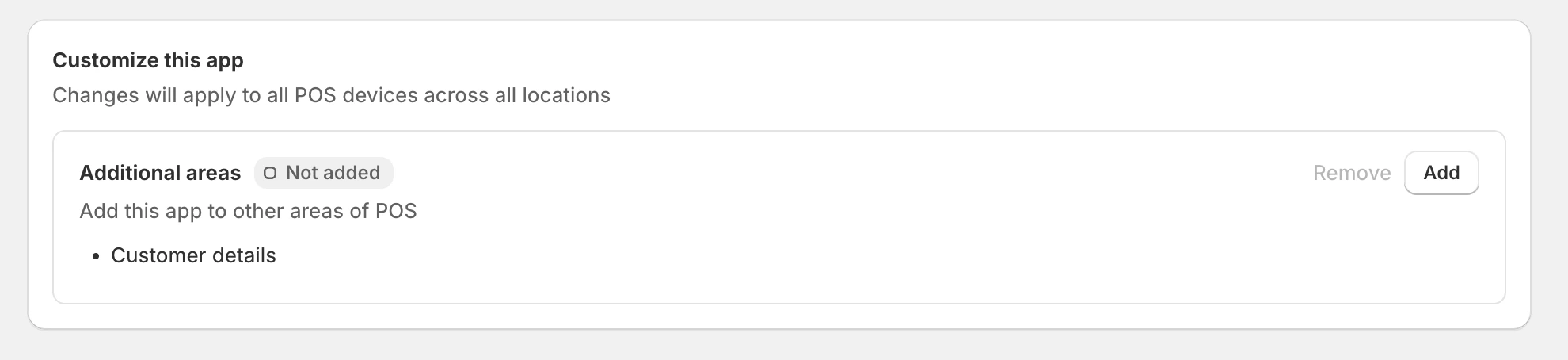 The extension will now be available within the Customer profile in the Shopify POS app.
## Using the Extension
To use the extension, open the customer's details in POS by either:
* Searching and selecting them in the "Customers" tab
* Tapping their name in the cart if they are already added to it
There are two main parts to the Customer Details extension:
### Customer Details
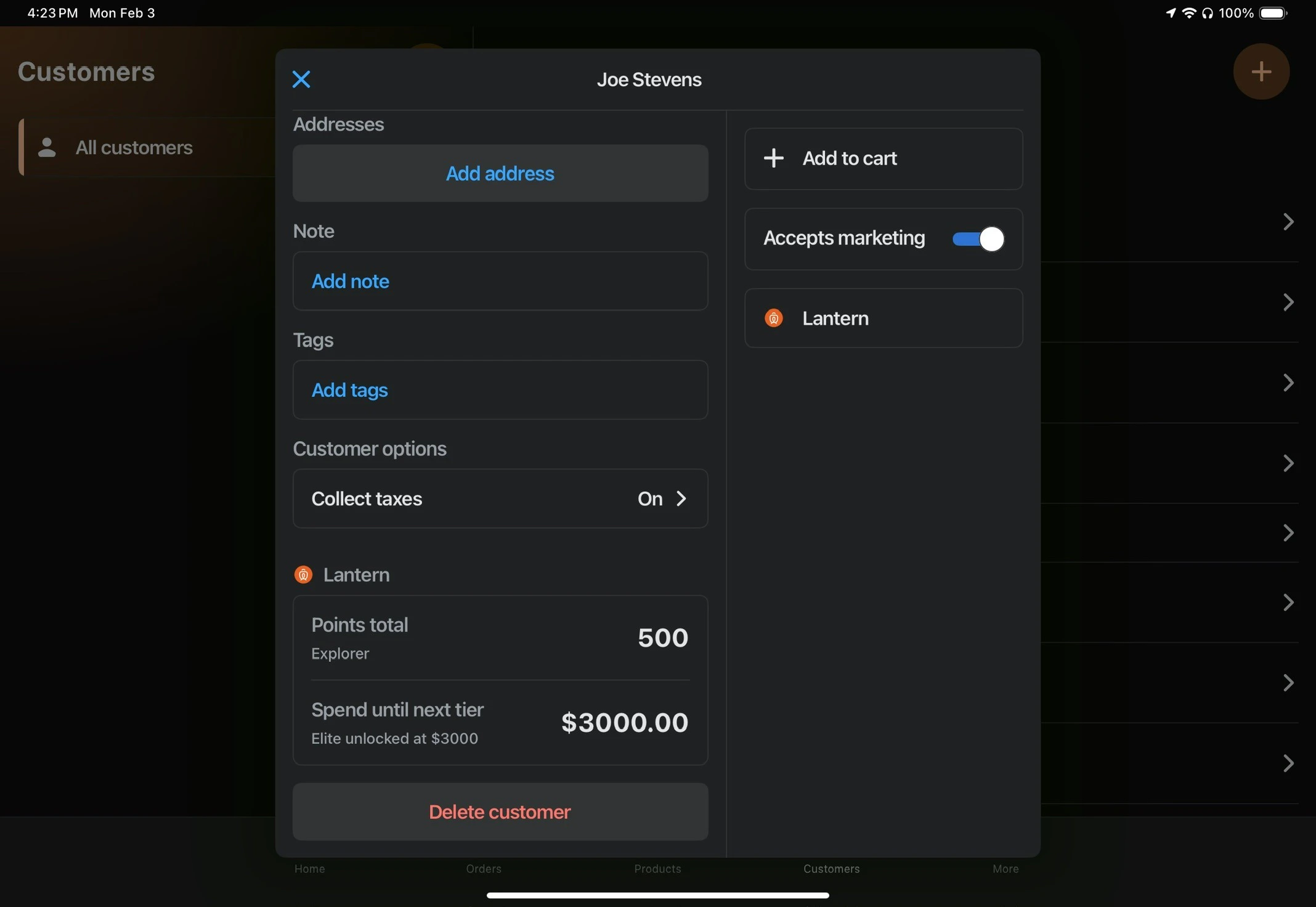
The overview section appears on the customer profile, showing:
* Current point balance
* Loyalty tier
* Points needed to reach the next tier (if applicable)
To view these details, scroll to the bottom of the customer's profile under the "Lantern" heading.
The extension will now be available within the Customer profile in the Shopify POS app.
## Using the Extension
To use the extension, open the customer's details in POS by either:
* Searching and selecting them in the "Customers" tab
* Tapping their name in the cart if they are already added to it
There are two main parts to the Customer Details extension:
### Customer Details
The overview section appears on the customer profile, showing:
* Current point balance
* Loyalty tier
* Points needed to reach the next tier (if applicable)
To view these details, scroll to the bottom of the customer's profile under the "Lantern" heading.
 ### Customer Actions Modal
The actions modal provides tools to manage customer loyalty. To access it, click the "Lantern" action in the customer profile under the "Accepts marketing" toggle.
### Customer Actions Modal
The actions modal provides tools to manage customer loyalty. To access it, click the "Lantern" action in the customer profile under the "Accepts marketing" toggle.
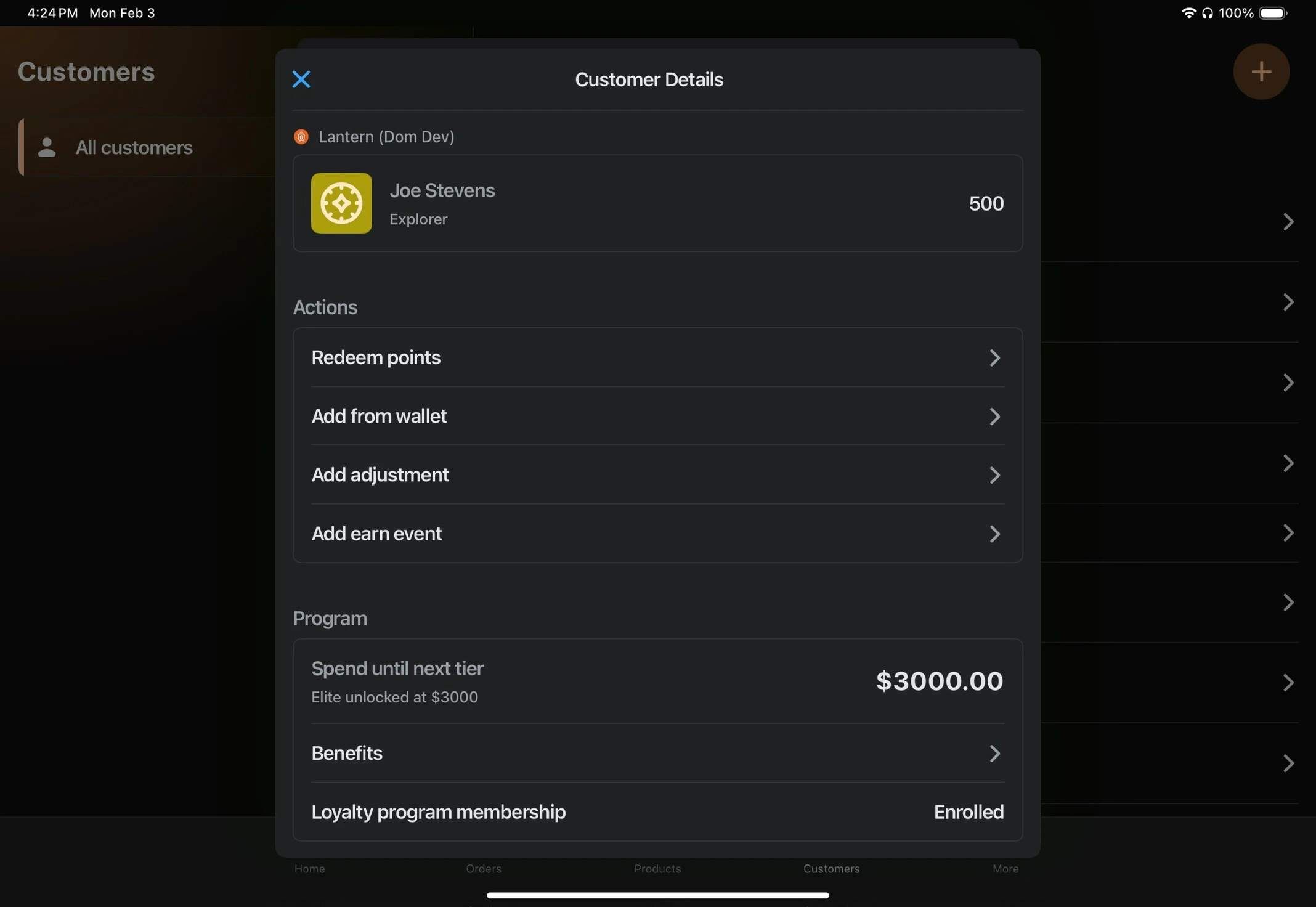 Available actions include:
#### Redeem Points
Use a customer's point balance to "purchase" a reward. This is useful for in-store redemptions.
#### Add from Wallet
Select from rewards the customer has already redeemed or been given that are in their wallet.
#### Add Adjustment
Manually adjust a customer's loyalty points or spend. This can be used to:
* Correct point balances
* Give points as a customer service action
* Allow manual overrides
#### Add Earn Event
Manually mark a Lantern earn event as completed. This is useful for:
* Custom earn events (like store check-ins)
* Viewing completed earn events
#### Benefits
View the benefits the customer receives with their current loyalty tier.
#### Loyalty Program Membership
Check the customer's membership status and allow them to opt into the program in person if they're not already a member.
Available actions include:
#### Redeem Points
Use a customer's point balance to "purchase" a reward. This is useful for in-store redemptions.
#### Add from Wallet
Select from rewards the customer has already redeemed or been given that are in their wallet.
#### Add Adjustment
Manually adjust a customer's loyalty points or spend. This can be used to:
* Correct point balances
* Give points as a customer service action
* Allow manual overrides
#### Add Earn Event
Manually mark a Lantern earn event as completed. This is useful for:
* Custom earn events (like store check-ins)
* Viewing completed earn events
#### Benefits
View the benefits the customer receives with their current loyalty tier.
#### Loyalty Program Membership
Check the customer's membership status and allow them to opt into the program in person if they're not already a member.