

Step 1: Enabling the Lantern App Embed
- From your Shopify Admin, go to Online Store > Themes.
- Click the Customize button next to the theme you want to edit.
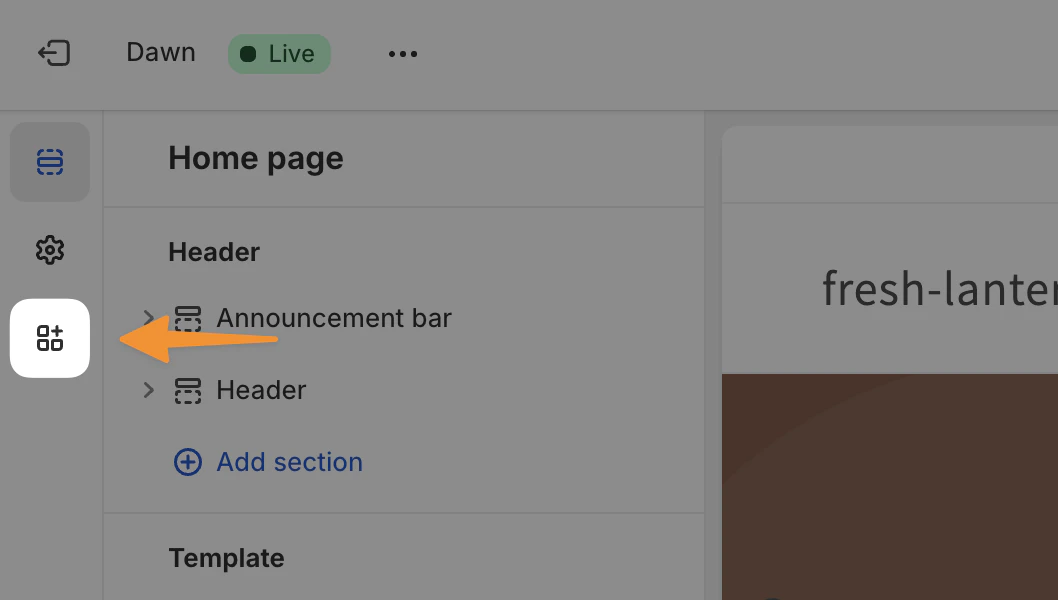
- On the left side of your screen, click the icon shown in the screenshot below to open the App Embeds interface.
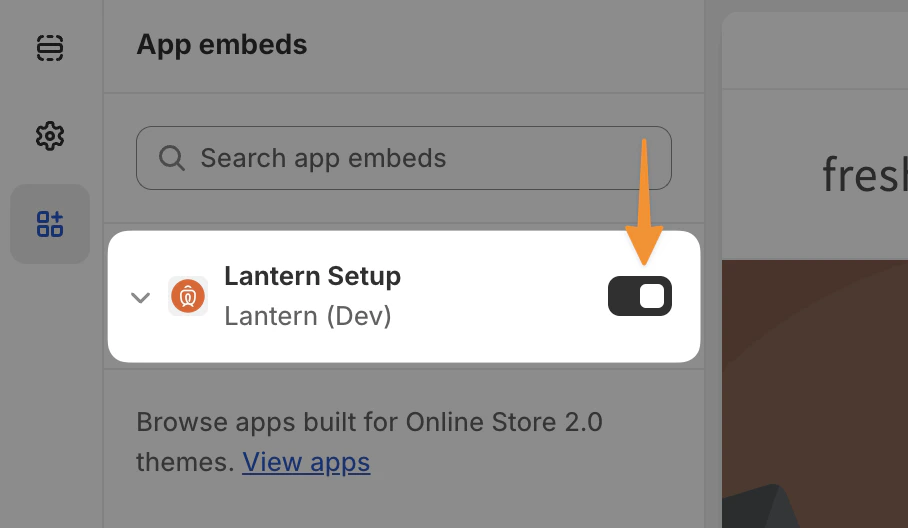
- Toggle the Lantern Setup app embed on as shown in the screenshot below. If you don’t see it in the list, try searching for Lantern in the Search app embeds search box.
- Click Save in the top right to save your change. This won’t impact your site experience
Step 2: Adding your first extension
Now that your Lantern app embed is enabled, you can start adding extensions to your theme. In this example, we’ll add some new features to the logged in Customer Account page. These steps will work for any template.- Navigate to the page where you want to add your extension by using your site navigation or by clicking the dropdown in the top-center of your screen.
- In our case, we’ll select Legacy Customer Accounts > Account.
- Once you’re on the Customer account page as shown at the top of the left sidebar, you can start adding extensions.
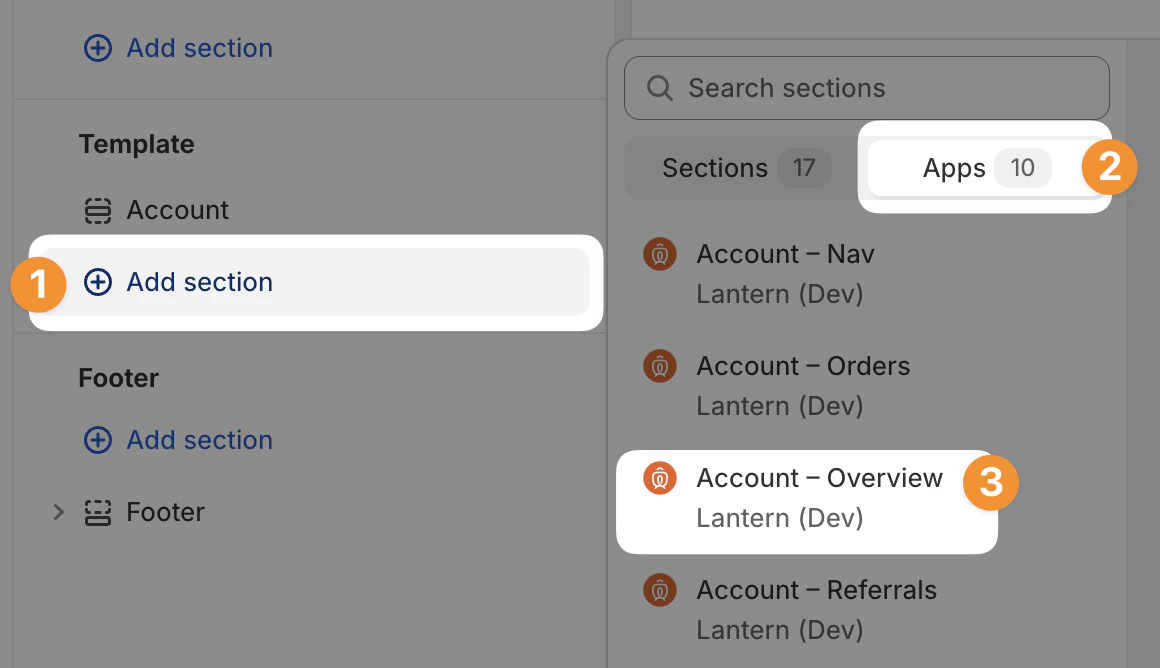
- Click the Add section option under Template and select the Apps toggle at the top of the popover.
- Choose the extension you’d like to add. In our case, we’ll pick Account — Overview.
- Your Account — Overview extension should now show up on your page. You can click on it in your left sidebar to manage its settings and reorder it on your page like any other theme section. In this case, you may want to change which widgets appear depending on whether you’re using a Loyalty Program or not.
- If you want to explore and add more blocks, keep adding them from the Add block Add section actions in the sidebar. You can intersperse Lantern extensions with your existing theme sections to build a fully customized page.
- Once you’re done updating your theme, you can hit Save in the top right to save your changes.