Setting up your rewards
We use the term Advocate to talk about a member who sends a referral and the term Friend to talk about a new customer who receives the referral.

Setting an Advocate reward
Advocate rewards incentivize your most loyal customers to promote your store, expanding your reach, and attracting high-quality customers at a lower cost. This strategy also fosters community and loyalty, encouraging repeat business. Advocates receive their reward when a Friend makes a purchase that meets your referral criteria. We’ll set that up later.1
Click the Add link in the top right of the Advocate reward card.
2
Choose whether you want to offer a Discount code or a Gift Card type reward. Discount
Code rewards apply to orders and can be either amount- or percent-based.
3
Set the amount for the reward type you selected.
Setting a Friend reward
Friend rewards are a great way to incentivize a first purchase from a new customer. Lantern requires new customers to sign up for an account to receive their referral reward — this helps limit fraudulent referrals and gives your customers another great reason to create an account.1
Click the Add link in the top right of the Friend reward card.
2
Choose what type of reward you want to offer: - Order discount: The most common type of
Friend reward. Order discounts apply on the first qualifying order made by the Friend. This is
the best type of reward to create if you want to incentivize the first purchase. This is the
most common type of Friend reward. - Gift card: Gift cards are awarded after the first
qualifying order. This is the best type of reward to create if you want to incentivize a repeat
purchase.
3
Set the amount for the reward type you selected.
4
Set whether Friends must spend a Minimum order value to receive their reward. This minimum
order value will also be used to determine if the Advocate should receive a reward. - You can
use this setting to make sure you’re not giving away too much margin with each referral.
Every successful referral results in both the Advocate and the Friend receiving a reward. Make sure you account for both when you’re setting up your program.
Setting safeguards
Offering great referral rewards sometimes results in bad actors — some customers trying to game the system by referring themselves or creating other fraudulent referrals. The first and best safeguard is built into Lantern’s Referrals by default — we only allow signed in members to refer others. The more you create value around having a signed in member with attributed orders, the less likely someone will want to try to game the system. If you want to go further, Lantern provides a set of optional safeguards you can enable by clicking Edit.Require advocate to have made an order before referring.
This setting makes it so members can’t send referrals unless they’ve previously made a purchase from your store. This is a great setting if you want to increase the quality of your referrals because it ensures that the member has purchasing experience.Disable referrals from aliased emails.
This setting ensures that customers can’t use workarounds to refer themselves using common email aliasing techniques. We recommend keeping this setting enabled.Disable referrals with the same IP address.
This setting compares the referred Friend’s IP address with the Advocate’s IP address. If they’re the same, the Friend isn’t eligible to receive the referral. We only recommend enabling this if you are having trouble with fraudulent referrals as it can result in a lot of false positives.Disable referrals with the same IP address and same user agent.
This setting is similar to the above but only limits referrals if both the IP address and the browser information match. This reduces the false positives created by IP address checking but doesn’t eliminate them.Setting a Landing Page
The Landing Page setting gives you the ability to change the default that is provided when an Advocate shares their referral link. This is useful for sending referred Friends to a specific page, collection, or product. By default, this is set to your homepage. To set a referral landing page, change the value of the input to the URL of the page you want.Setting your Display Content
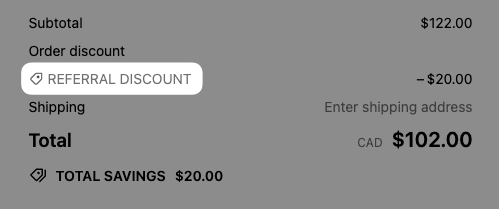
Cart discount message
Default share content