

Works for stores using New Customer Accounts and Legacy Customer Accounts.
Adding the Sign in with Shop action to your Account Menu
1
Go to your Dynamic Account Menu extension in Lantern’s Flare
editor.
2
Switch to the Logged Out state in the top right of the editor near the Publish button.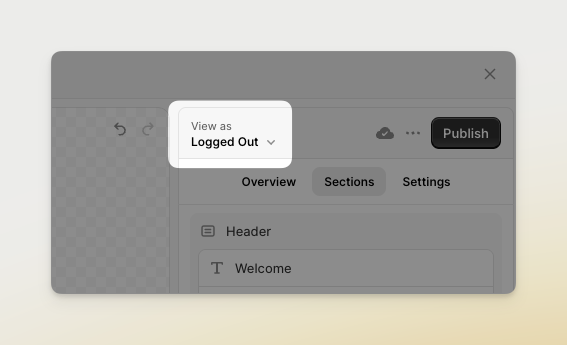
3
Press on the Login actions block to edit it. If you don’t have a Login actions block,
you can add one by clicking the Add block button and choosing Login actions from the
list.
4
Click the Add action and choose the Sign in with Shop action. 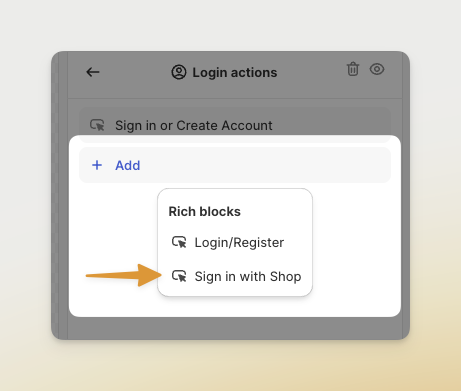
5
Update the settings to match your preferences. You can choose whether to show the Shop logo and
text or just text. You can also choose whether to show the action as primary or secondary.
6
When you’re ready, press Publish to make the changes to your Account Menu.